
How to Get Started With WhatsApp Business API Platforms for Role-Based Access
You just added three agents to your WhatsApp Business API account and everyone can see every customer chat. That is a compliance problem waiting to happen, and it gets worse as your team grows. Assigning roles correctly from the start keeps billing details, bot flows, and customer conversations in the right hands.
This article walks through what role-based access actually means on WhatsApp Business API platforms, the Meta Business verification and WABA setup steps you need first, and how to map your team to admin, agent, supervisor, and viewer permissions. You will also see the mistakes that break access control and how Com.bot structures team roles and per-seat access.
What Role-Based Access Means in WhatsApp Business API Platforms
Role-based access control (RBAC) in WhatsApp Business API platforms is a security framework that assigns permissions to users based on their organizational role, ensuring that each team member can only access the features and data necessary for their job.
This goes well beyond basic user management. Simple user management asks one question: can this person log in? RBAC asks a more detailed set of questions. What can they see? What can they change? Which phone numbers, message templates, or analytics dashboards are within their reach?
In a multi-user environment, those distinctions matter. A large support team may include dozens of people touching the same WhatsApp Business Platform account. Without defined roles, any user could alter billing settings, delete templates, or export customer conversations.
RBAC solves this by mapping granular permissions to job functions. A new hire handling chats does not need access to payment methods. A finance lead does not need to reply to customers. Each person gets exactly what their work requires, nothing more.
Most platforms built on the WhatsApp Business API recognize a common set of roles. These typically include Admin, Agent, Supervisor, and Viewer. Some tools also support custom roles or allow administrators to fine-tune individual permissions within a role.
The sections below break down what each role can typically do, how the roles interact, and why this structure supports both team collaboration and data security.
Admin, Agent, Supervisor, and Viewer Roles Explained
In WhatsApp Business API platforms, the Admin role typically holds full control over account settings, user management, and billing, while Agents focus on customer interactions, Supervisors oversee team performance, and Viewers have read-only access for auditing or reporting.
Each role serves a distinct purpose. The table below summarizes typical permissions, though exact capabilities vary by platform.
| Role | Typical Permissions | Example Tasks |
|---|---|---|
| Admin | Full access to settings, users, billing, integrations | Adding team members, connecting a payment method, configuring webhooks |
| Agent | Access to inbox and assigned conversations | Replying to customers, sending approved templates, tagging chats |
| Supervisor | Monitor and manage agent activity, view analytics | Assigning conversations, reviewing response times, coaching agents |
| Viewer | Read-only access to reports and conversations | Auditing message history, exporting performance summaries |
The Admin role usually connects to Meta Business Suite, manages the Meta developer account, and handles business verification and phone number registration. This person controls who else gets access and at what level.
Agents work inside the shared inbox. They handle conversational messaging within the 24-hour window, send session messages, and rely on approved templates for anything outside it. They rarely see billing or configuration screens.
Supervisors sit between strategy and execution. They track how quickly agents respond, reassign overloaded queues, and pull analytics on template performance. A Viewer, by contrast, cannot send or change anything. This role suits compliance officers, auditors, or executives who need visibility without risk.
Many platforms let administrators adjust these defaults. You might give a senior agent temporary Supervisor rights, or create a custom role for a developer who only needs webhook configuration access. The goal is matching permissions to real responsibilities, not forcing every person into a rigid box.
Why RBAC Matters for Compliance and Data Security
Implementing RBAC is critical for compliance with data protection regulations like GDPR and for preventing unauthorized access to sensitive customer conversations and business data.
Regulations such as GDPR and HIPAA share a common principle: personal data should only be accessible to people who need it for a legitimate purpose. RBAC puts that principle into practice. When every user has a defined role, access to phone numbers, chat histories, and opt-in consent records stays limited to authorized personnel.
The risks of skipping proper access controls are real and often mundane. A former employee with leftover credentials can still read conversations. A junior team member might accidentally delete a message template or export a customer list to the wrong place. These are not dramatic breaches. They are everyday leaks, and they add up.
RBAC also strengthens accountability. When permissions are tied to roles, activity logs become meaningful. An audit trail can show which user sent a template, changed a setting, or viewed a report. That clarity supports both internal reviews and external compliance checks.
Consider a healthcare provider using the WhatsApp Business Platform for appointment reminders. A Viewer role lets a compliance officer confirm that messages follow consent rules without granting the ability to send anything. A Supervisor can spot-check agent responses. Neither needs billing access, and neither gets it.
Finally, RBAC reduces the blast radius of mistakes. If one account is compromised, the damage stays within that role's permissions. A breached Agent account cannot drain a payment method or alter business verification details. In any secure multi-user environment, that containment is the difference between a minor incident and a serious one.
Organizations with formal access controls tend to detect and contain incidents faster than those without. For anyone running customer support at scale on WhatsApp, RBAC is not an optional layer. It is the foundation the rest of your security posture rests on.
Prerequisites Before You Start
Before configuring role-based access, you must ensure your business meets Meta's verification requirements and decide on the right API access approach for your organization. Skipping either step leads to delays later, because you cannot assign user roles, permissions, or admin privileges until the underlying accounts exist and are approved.
There are three foundational items to prepare. First, a verified Meta Business account that proves your organization is a legitimate entity. Second, a WhatsApp Business Account (WABA), which is the container that holds your phone numbers, message templates, and payment methods. Third, a phone number that is not currently registered with any other WhatsApp account, including the consumer app.
You also need to choose how you will connect to the WhatsApp Business Platform. The two main paths are direct API access through Meta's own tools, or working with a Business Solution Provider (BSP) that manages the technical layer on your behalf. Each path changes how you later structure roles and permissions.
The subsections below walk through verification and WABA setup first, then compare the two access methods so you can pick the one that fits your team.
Meta Business Verification and WABA Setup Requirements
Meta Business Verification involves submitting legal documents to confirm your business identity, which is mandatory for accessing the full WhatsApp Business API and creating a WhatsApp Business Account (WABA). The review is manual, so plan for it to take several days rather than minutes.
Start by gathering the details Meta asks for:
- Legal business name exactly as it appears on official records
- Registered address and contact information
- Legal documents such as a certificate of incorporation, business license, or tax registration
- A business website and email domain that match your company name
Once your Meta Business account is verified, you create the WABA inside Meta Business Suite. You then add a phone number, confirm you own it via SMS or voice call, and link it to the business account. During this step you also supply a display name that customers will see and a timezone that governs reporting and the 24-hour messaging window.
Verification must be complete before you configure roles. Role-based access control depends on having a verified business, a live WABA, and a system user or admin in place to grant permissions to others. Attempting to assign an admin role or developer role earlier will simply fail.
Choosing Between Direct API Access and a Business Solution Provider
Deciding between direct API access and a Business Solution Provider (BSP) hinges on your technical resources and desired level of control over the WhatsApp Business API integration. Both routes reach the same platform, but the day-to-day experience differs.
Direct API access means you work with Meta's own tools: a Meta developer account, the app dashboard, access tokens, and webhook configuration. It offers full control and no intermediary, but it demands engineering time for setup, monitoring, and template submission.
Using a BSP means a provider manages the connection for you. Setup is typically faster, support is included, and many providers bundle features such as a unified inbox and role-based access controls out of the box. This suits teams without dedicated developers.
Weigh these factors when deciding:
- Team capability: do you have developers who can maintain tokens, webhooks, and API version upgrades?
- Cost: direct access avoids provider fees but adds internal engineering cost
- Scalability: how many numbers, agents, and message volumes will you manage?
- Support: who handles outages, template rejections, and policy questions?
If your priority is granular permissions management and fast onboarding for a multi-user environment, a BSP that ships with user roles and admin controls often gets you there sooner. If you need deep customization and have the staff to support it, direct access keeps everything in your hands.
Step-by-Step Setup: Configuring Roles and Permissions
Configuring roles and permissions involves mapping your team's responsibilities to the platform's available roles and then assigning granular permissions for inbox, bot, and billing functions. A structured rollout keeps access clean from day one and reduces the risk of a single user holding more power than the job requires.
The process follows three stages. First, you map your team structure to platform roles. Second, you assign specific permissions within each functional area. Third, you test access levels before anyone touches live customer conversations.
The guiding principle throughout is least privilege. Every user should hold the minimum access needed to complete their work, nothing more. An agent who only answers messages does not need billing visibility, and a finance contact does not need bot editing rights.
Testing matters just as much as assignment. A permission set that looks correct on paper can behave differently once webhooks, API calls, and WhatsApp Manager settings come into play. Verifying each role in a controlled environment catches gaps before they become security or workflow problems.
The subsections below walk through each stage in detail, from mapping roles to running a pilot before full deployment.
Mapping Your Team Structure to Platform Roles
Start by listing your team members and their responsibilities, then align each person or group with the appropriate platform role, such as Admin for IT managers or Agent for customer support representatives. This mapping step sets the foundation for everything that follows.
Begin with a simple task inventory. Ask what each person actually does day to day:
- Managing users, integrations, and account settings
- Responding to customer conversations in the shared inbox
- Building, editing, and deploying bots or automated flows
- Reviewing reports and conversation analytics
- Handling invoices, payment methods, and billing questions
Once tasks are clear, match them to standard roles. Most platforms offer variations of Admin, Supervisor, Agent, Developer, Billing, and Viewer or read-only access. A small business might run one Admin and several Agents. A larger enterprise may need multiple Supervisors, a dedicated Developer role for webhook configuration, and Viewers for stakeholders who only need visibility.
If the platform supports custom roles, use them to mirror your actual structure rather than forcing people into a poor fit. Also plan for future changes. Staff turnover, new hires, and expanded responsibilities are inevitable, so choose a role structure that can absorb growth without a full rebuild.
Assigning Inbox, Bot, and Billing Permissions
Assign permissions by navigating to the user management section of your WhatsApp Business API platform, where you can toggle access for inbox conversations, bot configuration, and billing settings. Treat each area separately, since a person rarely needs full rights across all three.
Inbox permissions typically break down into viewing conversations, replying to messages, and assigning or reassigning threads. Bot permissions cover creating, editing, and deploying automated flows, plus managing message templates. Billing permissions include viewing invoices and updating payment methods.
Common assignments look like this:
- Agent: inbox view and reply, no billing access, no bot editing
- Supervisor: inbox assign and reassign, bot edit, no payment method changes
- Developer: bot deploy, webhook configuration, API access, limited inbox visibility
- Admin: full access across inbox, bot, and billing
Some platforms allow custom permission sets that mix and match these toggles. Use them carefully. Granting excessive permissions, even temporarily, is one of the most common RBAC mistakes because temporary access tends to become permanent. Review assignments periodically and remove anything no longer needed.
Testing Access Levels Before Going Live
Before rolling out to your full team, create test user accounts for each role and verify that they can only access the features and data intended for their role. A short, structured test cycle prevents surprises once real customers are involved.
Follow a simple protocol:
- Create one dummy user per role.
- Log in as each user and attempt tasks outside their permissions.
- Confirm that the platform blocks unauthorized actions.
- Check that webhooks and API calls respect the same restrictions.
- Document every issue and adjust permissions accordingly.
The webhook and API check is easy to overlook. A user role might be locked down in the interface while an access token or system user still carries broader rights. Verify both layers.
After testing, run a pilot with a small group before full deployment. A handful of real users in a live but limited setting surfaces workflow friction that dummy accounts cannot. Collect their feedback, refine the permission sets, then expand to the rest of the team with confidence.
Common Mistakes When Managing Role-Based Access
Frequent pitfalls include granting overly broad permissions, neglecting to revoke access for departing employees, and failing to regularly audit role assignments. Each of these failures weakens the entire role-based access control model, even when the initial setup was sound.
In a WhatsApp Business API environment, the stakes are higher than in many other tools. A single over-privileged account can expose message templates, access tokens, or billing details tied to your WhatsApp Business Platform account. The mistakes below appear again and again, and each one has a practical fix.
1. Over-privileged users. Giving an agent billing access is one of the most common errors. An operator role that only needs read-only access to conversations should never see payment settings or Meta Business Suite admin controls. The fix is to map every team member to the narrowest user role that still lets them do their job, then review that mapping whenever responsibilities change.
2. Ignoring least privilege. Teams often assign broad permissions "just in case" and never revisit them. Granular permissions exist for a reason: a developer role needs access token and webhook configuration rights, but not the ability to approve message templates or manage billing. Start every new account at read-only access and add permissions only when a specific task requires them.
3. Skipping offboarding. Ex-employees with active accounts are a quiet security risk. When someone leaves, their access to WhatsApp Manager, the Meta developer account, and any connected app dashboard should be revoked the same day. Automated deprovisioning tied to your HR or identity system removes the human delay that causes most of these gaps.
4. No periodic audits. Permissions drift over time as people change teams or take on new projects. Schedule a recurring review, monthly or quarterly, to compare current role assignments against actual job duties. During the audit, check for dormant accounts, duplicate system user credentials, and roles that no longer match anyone's work.
5. Undocumented role definitions. When nobody writes down what each role is allowed to do, every new admin invents their own interpretation. Keep a shared document that defines the admin role, developer role, billing role, operator role, and read-only access in plain language. Update it whenever you add a permission, and treat it as the source of truth during onboarding and audits.
These five mistakes share a common thread: access decisions made once and never revisited. Regular reviews, automated deprovisioning, and clear role documentation break that pattern. Together they keep your multi-user environment aligned with the principle of least privilege, which protects both customer data and the integrity of your conversational messaging operations.
How Com.bot Handles Role-Based Access and Team Management
Com.bot integrates role-based access control directly into its unified team inbox, allowing businesses to assign roles and permissions while managing conversations across WhatsApp, Facebook, and Instagram from a single platform. This approach removes the need to juggle separate logins or spread access permissions across disconnected tools.
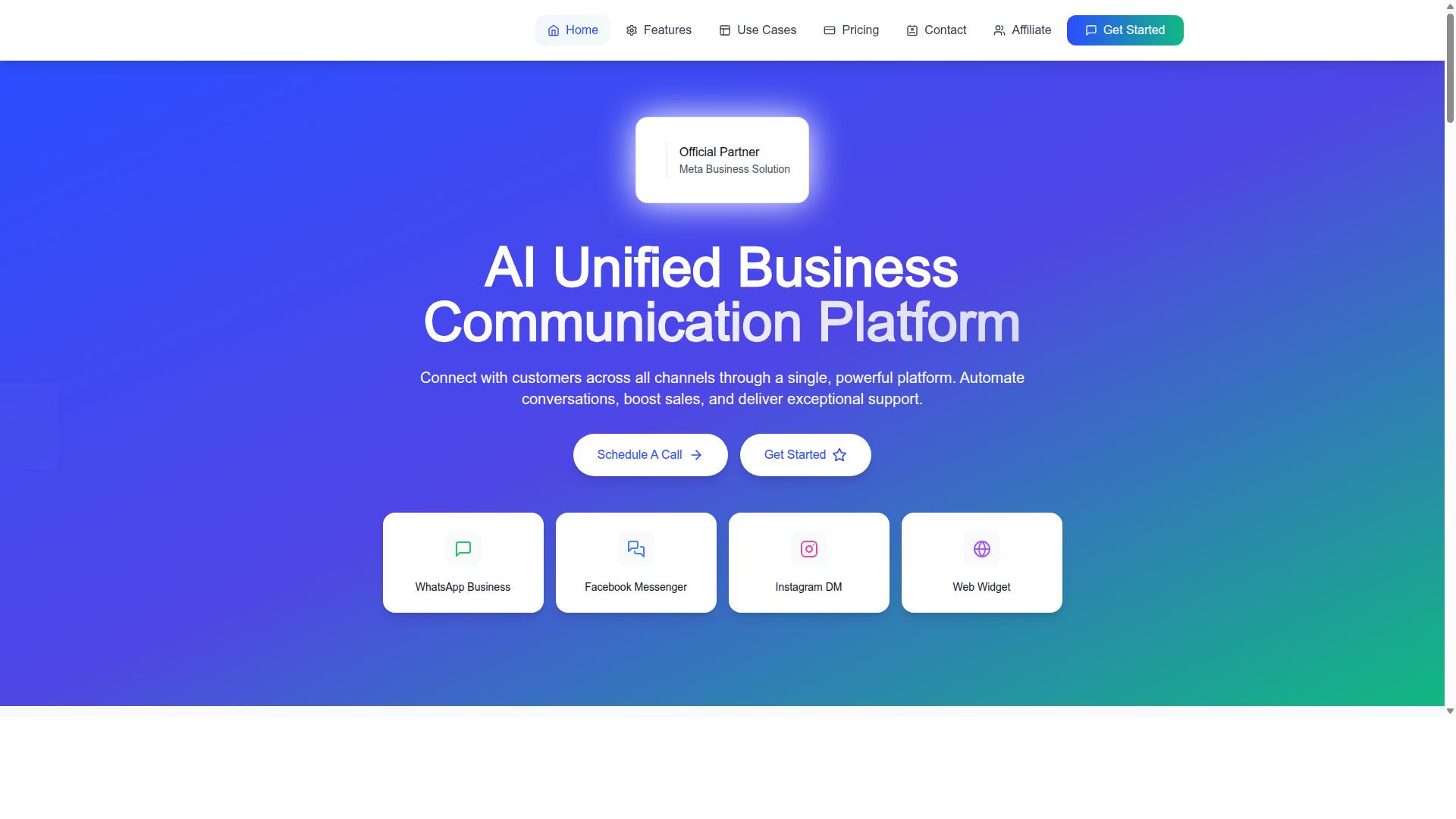
Com.bot is an AI Unified Business Communication Platform and an Official Meta Business Partner with direct WhatsApp Business API integration. That partner status matters for RBAC because permissions management sits close to the WhatsApp Business Platform itself, rather than being bolted on afterward.
The platform serves 23,000+ active customers and is owned and managed by Com Bot AI Limited. For teams weighing an API provider, that scale suggests the role structure has been tested across many different support and sales setups.
Role-based access control, or RBAC, determines who can see which conversations, who can respond, and who can change settings. In a multi-user environment, granular permissions protect customer data and keep inexperienced users away from billing or configuration screens.
The subsections below cover how Com.bot structures inbox roles and per-seat pricing, then explain the setup support and global service coverage available to teams configuring access for the first time.
Unified Team Inbox Roles and Per-Seat Pricing
Com.bot's unified team inbox supports team collaboration with role-based access, with per-seat pricing that makes it cost-effective to add team members as your business grows.
- Admin: full control over the workspace, including settings and team management.
- Supervisor: monitors conversations and assigns them to the right agents.
- Agent: responds to customer conversations across connected channels.
This tiered structure mirrors the logic behind user roles in the WhatsApp Business Platform, where an admin role, developer role, or billing role each carries different permissions. Com.bot brings that same separation of duties into a shared inbox so a support agent never needs access to billing details, and a supervisor can route work without altering workspace configuration.
Additional team members cost $10 per month each, listed as an add-on alongside other platform extras. That per-seat model gives granular control over who can access which channels and conversations, because you only pay for the seats you actually need.
Consider a team with 5 agents and 1 supervisor. The supervisor assigns incoming WhatsApp and Instagram conversations to the five agents, while the account owner retains the Admin role for settings and billing. Adding a sixth agent later costs one additional seat at $10 per month, with no need to restructure existing permissions.
For growing teams, this keeps role-based access control predictable. You scale headcount and permissions together instead of over-provisioning access from day one.
Setup Support and Service Coverage Across 50+ Countries
Com.bot provides setup support to help businesses configure roles and permissions correctly, and its services are available in over 50 countries worldwide. Getting the role structure right at the start prevents the messy permission fixes that slow teams down later.
Support is available during business hours, Monday through Friday, 9 AM to 6 PM IST. Teams can reach the support desk to ask questions about assigning roles or adjusting access as the team changes.
For businesses that want hands-on help, dedicated support is available at $49 per hour for WABA, CRM, and Inbox topics, and $99 per hour for Ecommerce, Bots, and Automations. This is useful when an organization needs guidance mapping its internal job functions to the Admin, Supervisor, and Agent roles inside the unified inbox.
Com.bot serves customers globally, including government bodies and enterprises, which means the platform has been configured for organizations with strict internal permission requirements. A government body, for example, may need read-only access for oversight staff and tighter Admin control over configuration.
Because the platform is available worldwide online and covers 50+ countries, setup assistance accounts for different team structures and compliance expectations. Whether you are a small support desk or a large enterprise, the same role framework applies, and support is there to help you apply it to your specific workflow.
Best Practices for Ongoing Access Governance
Establishing a regular review cycle for user roles and permissions is essential to maintain security and adapt to team changes. Role-based access control is not a task you complete once during onboarding. It is a living process that must evolve as your team grows, people change positions, and your WhatsApp Business API usage expands.
Without consistent governance, permissions accumulate quietly. A former employee may retain an active system user, or a customer support agent may hold permissions far beyond what the role requires. Regular audits close these gaps before they become risks.
The practices below help teams keep their permissions management disciplined and their WhatsApp Business Platform environment secure over the long term.
Conduct quarterly access reviews. Set a recurring calendar block, ideally every quarter, to examine every user role in your Meta Business Suite and WhatsApp Manager. Confirm that each person still needs their current level of access. Remove anyone who has changed teams, left the company, or no longer works with the API. Document what changed and why.
Automate deprovisioning when employees leave. Manual offboarding is where most access leaks happen. Build a checklist that ties HR exit procedures directly to permission removal. Revoke access tokens, disable system users, and reassign any app dashboard responsibilities the person held. The faster this happens, the smaller the exposure window.
Apply the principle of least privilege. Grant each user only the access their role demands. A billing role does not need webhook configuration rights. A read-only access user does not need to send session messages. This limits damage if an account is compromised and keeps your granular permissions meaningful.
Document role definitions clearly. Write down what each role can and cannot do. Cover the admin role, developer role, billing role, operator role, and read-only access. When definitions live in a shared document, new team members understand expectations quickly and reviewers have a benchmark to compare against.
Train staff on RBAC policies. People follow rules they understand. Brief your team on why role-based access control matters, how to request permission changes, and who approves them. Refresh this training when policies change or when new tools join your stack.
Use audit logs to track permission changes. Audit logs show who changed what and when. Review them alongside your quarterly access reviews. Unexpected permission grants or role escalations often surface first in the logs, giving you a chance to respond early.
Governance works best as a habit rather than a project. A short quarterly review, a tight offboarding checklist, and clear documentation prevent most access problems before they start.
For personalized assistance with setting up or refining your access governance, Com.bot is available to help. You can reach the team at sales@com.bot or by phone and WhatsApp at +91 080 6987 1810. The head office is located at 501, Trinity Orion, Vesu Main Road, Surat - 395010, IN, with business hours Monday through Friday, 9:00 AM to 6:00 PM IST. WhatsApp support is also available for quick questions.
Recommended Resources: